Create a Scratch Card Popup
The Scratch Card popup lets visitors scratch to reveal their prize — a fun, tactile experience that works especially well on mobile. Upload a custom cover image and configure multiple prize tiers.
Best For
- • Product launches and new collections
- • Holiday and seasonal promotions
- • Flash sales and limited-time offers
- • Mobile-first stores
How It Works
- 1. Visitor sees the popup
- 2. They enter their email/phone
- 3. A scratch card appears with your cover image
- 4. They scratch to reveal their prize
In this guide
1Create the Popup
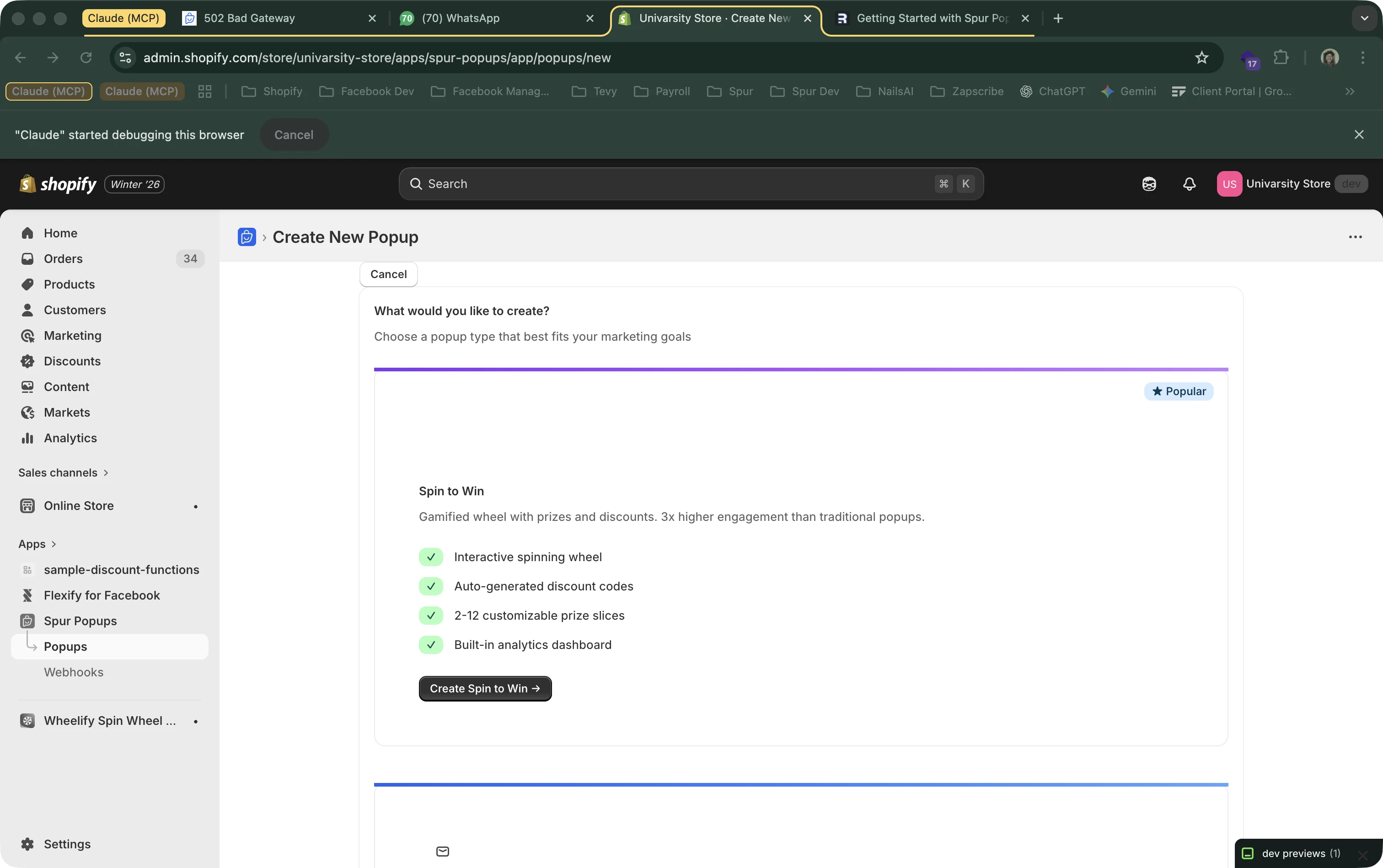
From your dashboard, click "Create Popup" and select "Scratch Card".
2Basic Setup
The editor looks similar to other popup types — settings on the left, live preview on the right:
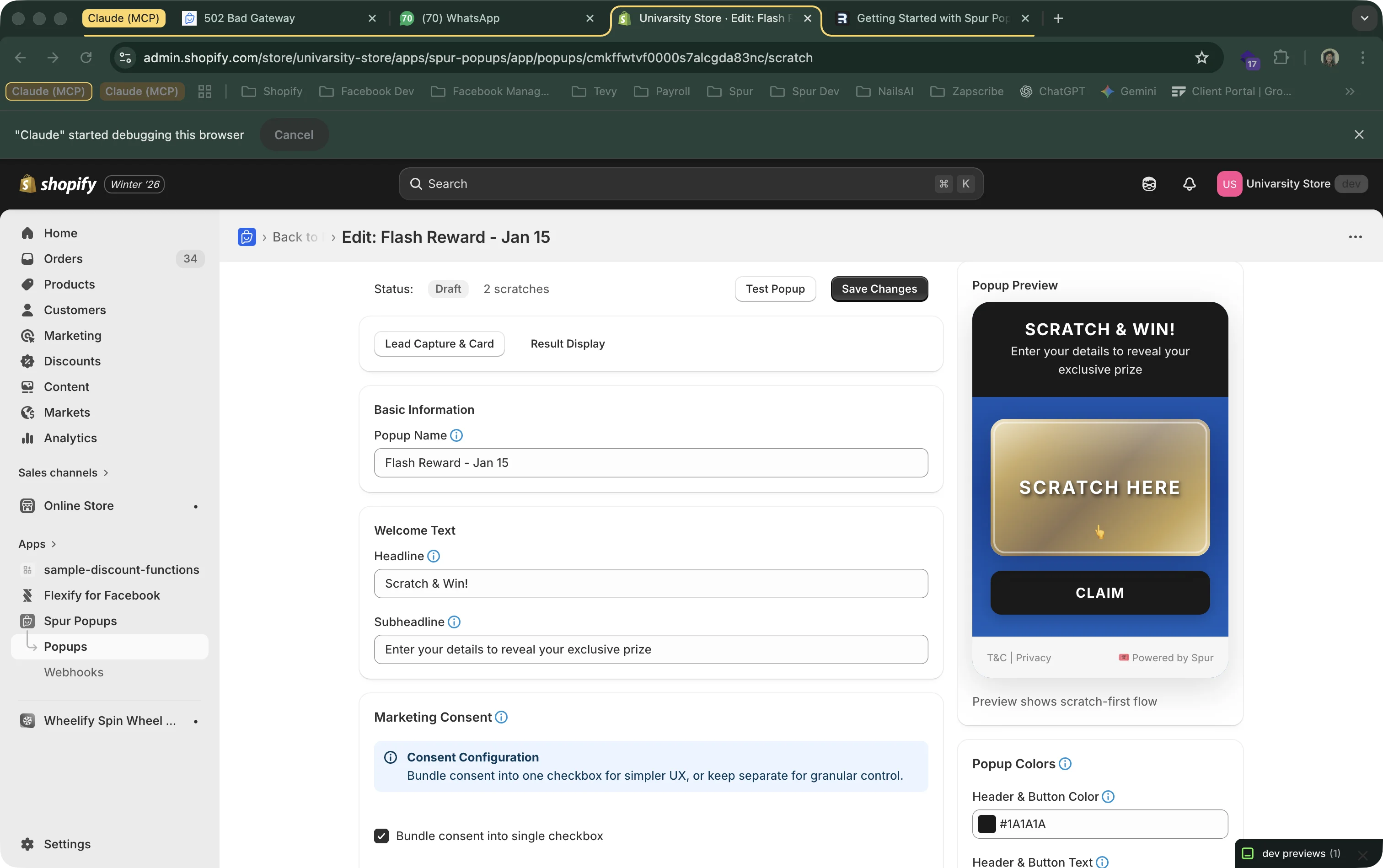
Popup Name
Internal name (e.g., "Holiday Scratch"). Only you see this.
Headline
The main text visitors see: "Scratch & Win!", "Reveal Your Surprise Discount!", "Scratch to Save!"
Description
Supporting text: "Enter your email and scratch the card to reveal your exclusive discount!"
Lead Capture Fields
Same as other popup types — toggle email, phone, and name fields. See our Newsletter guide for field recommendations.
3Custom Cover Image
The cover image is what visitors see before they scratch. It's the "scratchable surface" that gets removed to reveal the prize underneath. This is what makes scratch cards visually appealing — choose an image that matches your brand or promotion.
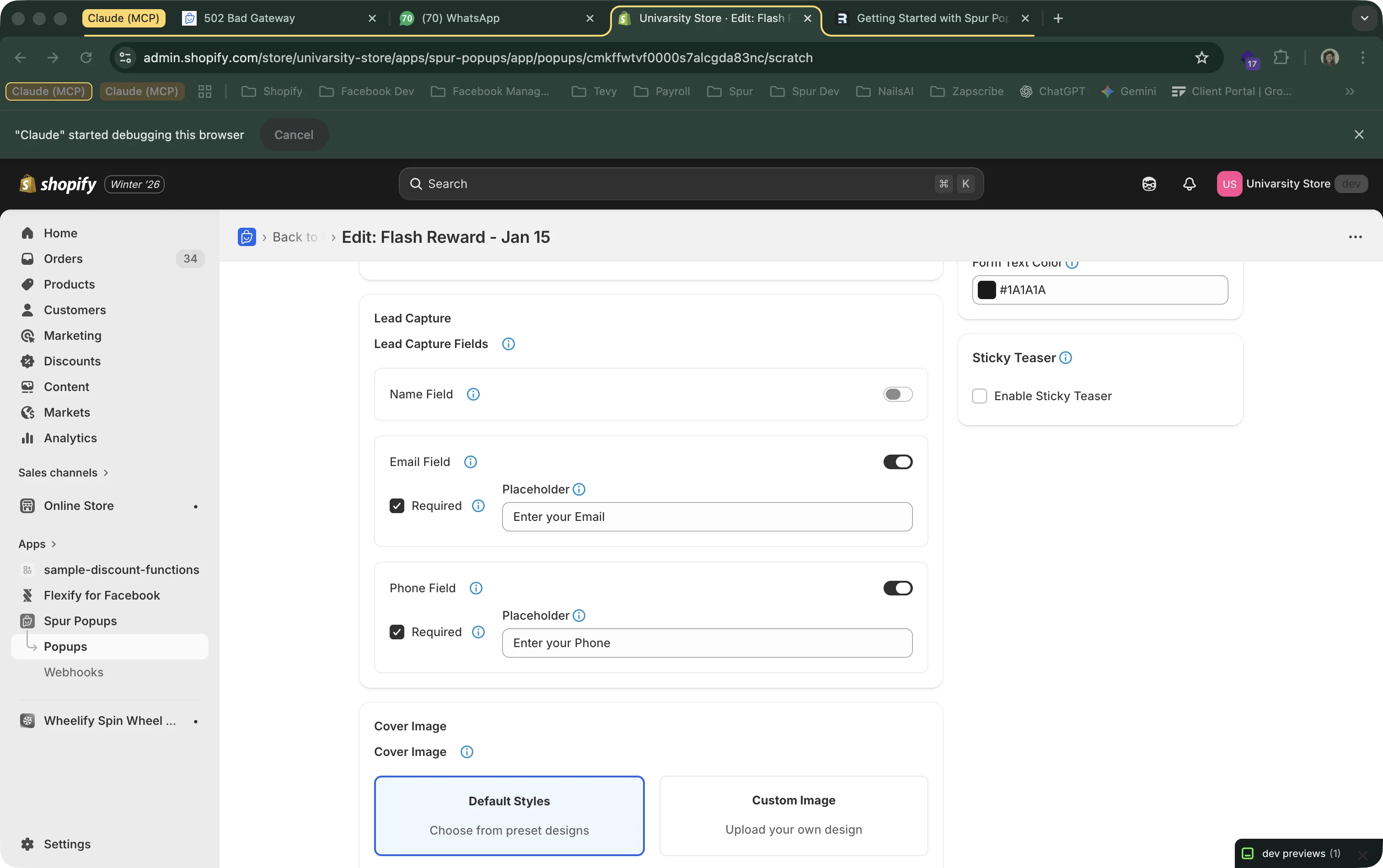
Image Recommendations
- • Size: 400x400 pixels or larger (square works best)
- • Format: PNG or JPG
- • Ideas: Gold foil, silver metallic, holiday textures (snowflakes, gift wrap), your brand pattern
- • Text on image: Add text like "SCRATCH HERE" to make the interaction obvious
No image? Spur provides a default scratch surface if you don't upload one. But a custom image makes the experience much more engaging and on-brand.
4Prize Configuration
Prize configuration works the same as Spin to Win — set up multiple prize tiers with different probabilities. Each visitor's prize is determined when they submit their info, and revealed when they scratch.
Available Prize Types
Percentage Off
Discount percentage (10%, 20%, etc.). A unique Shopify code is auto-created.
Fixed Amount Off
Dollar amount ($5, $10, etc.).
Free Shipping
A free shipping discount code.
Custom Code
Your own pre-existing Shopify discount code.
No Prize
A "Better Luck Next Time" outcome. You still get the lead.
Strategy Tip
Scratch cards create a moment of anticipation as the visitor scratches. Make most prizes winners to capitalize on that excitement. A setup like 60% small discount / 25% medium / 10% large / 5% no prize works well. The suspense of scratching makes even small prizes feel exciting.
5Scratch Settings
Configure how the scratching interaction works:
Scratch Threshold
The percentage of the card that must be scratched before the prize is fully revealed (default: 50%). Lower values (30%) make it easier and faster. Higher values (70%) require more scratching, which builds more suspense.
Mobile Experience
Scratch cards work especially well on mobile. The touch-based scratching feels natural and intuitive on phones and tablets. Make sure your app embed is enabled so the popup appears on mobile browsers.
You can also configure the same settings as other popup types:
Colors
Header, button, form background, and text colors.
Display Delay
Seconds to wait before showing (0–60).
Marketing Consent
Bundled or unbundled checkboxes. Auto GDPR.
Sticky Teaser
Small tab that appears after closing for re-engagement.
6Save and Activate
When your scratch card is ready:
- Click "Save Changes"
- Go back to your dashboard
- Flip the toggle switch to activate it
- Use "Test Popup" to preview (scan the QR code to test on mobile!)
Test on mobile: The scratch interaction is best experienced on a phone. Use the QR code from the Test Popup button to try it on your mobile device.