Enable the App Embed
For your popups to appear on your store, you need to enable the Spur Popups app embed in your Shopify theme. This is a one-time setup.
Important: If you skip this step, your popups won't appear on your storefront even if they're activated in the dashboard. This is the #1 reason new users think their popup isn't working.
What Is an App Embed?
An app embed is a small piece of code that Shopify loads on every page of your store. Spur Popups uses this to display your popups to visitors. Without it enabled, the popup code never loads and visitors won't see anything.
Think of it like a light switch — your popup is the light bulb, and the app embed is the switch. Both need to be on for the light (popup) to work.
Check Your Status
The easiest way to check is to look at the App Status card in the sidebar of your Spur Popups dashboard:
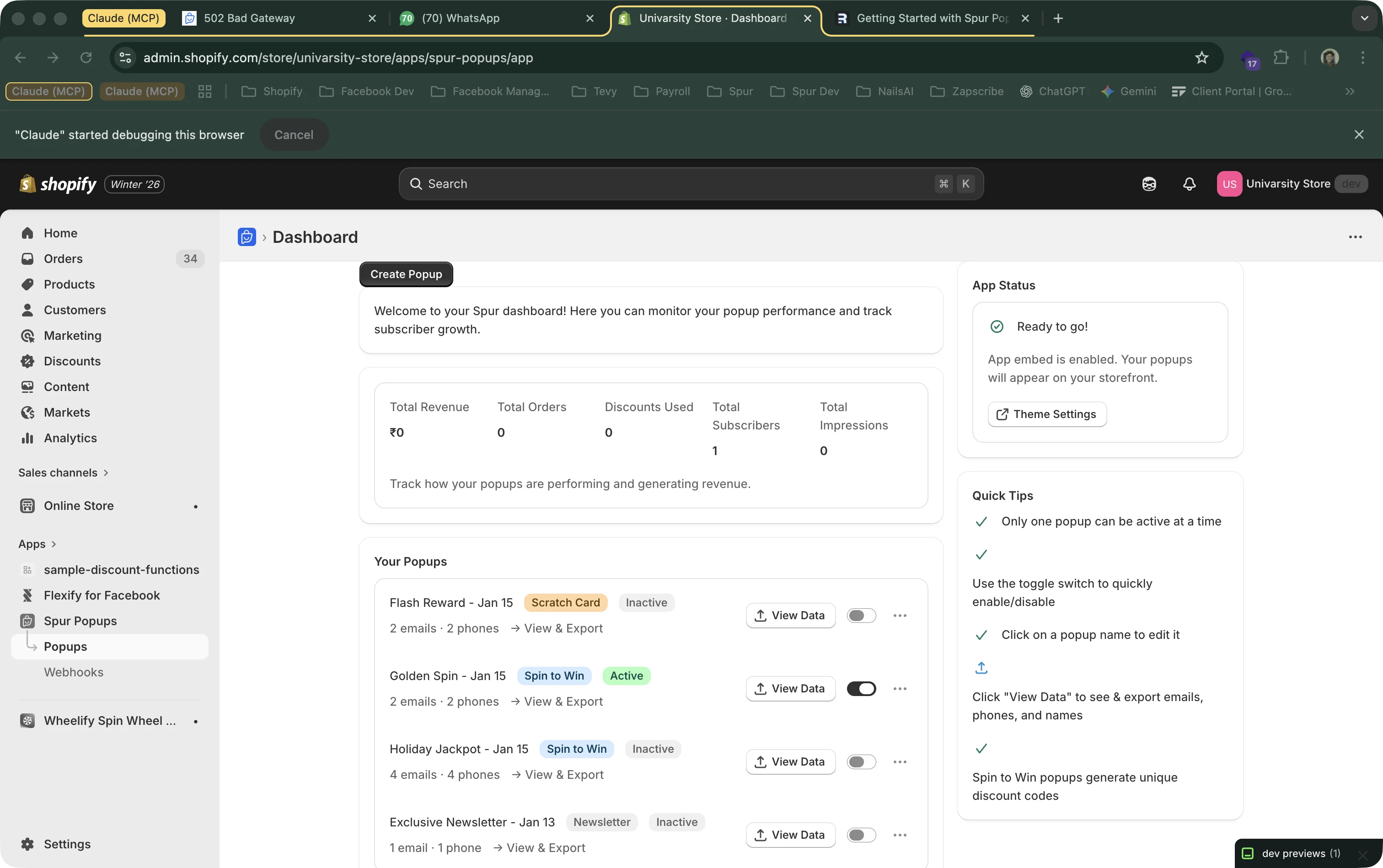
Ready to go!
App embed is already enabled. Your popups will appear on your storefront. No action needed.
Action Required
App embed is not enabled. Click the "Enable App Embed" button to fix this. Follow the steps below.
How to Enable the App Embed
Follow these steps to enable the embed. This only needs to be done once:
- 1
Click "Enable App Embed"
In the App Status card on your dashboard, click the "Enable App Embed" button (or "Theme Settings"). This opens your Shopify theme editor in a new tab.
- 2
Find "App embeds" in the Sidebar
In the theme editor, look at the left sidebar. You should see an "App embeds" section. If you don't see it immediately, scroll down — it's usually near the bottom of the sidebar.
- 3
Toggle ON "Spur Popups"
Find "Spur Popups" in the list of app embeds and flip the toggle switch to ON (it should turn green/blue).
- 4
Click "Save"
Click the "Save" button in the top right corner of the theme editor. That's it! Go back to your Spur Popups dashboard and the App Status card should now show "Ready to go!".
You're done!
The app embed only needs to be enabled once. It stays on even if you change themes (as long as you re-enable it on the new theme). Now go create your first popup!
Troubleshooting
Popup still not showing after enabling the embed?
- 1. Make sure the popup is set to Active in your dashboard (toggle is ON)
- 2. Clear your browser cache or try incognito mode
- 3. Check if you've set a delay (popup appears after X seconds)
- 4. If you have a password-protected store, popups may not load for non-logged-in visitors
- 5. Use the "Test Popup" button in the editor for a guaranteed preview link
Can't find "App embeds" in the theme editor?
- 1. Make sure you're in the correct theme (your published/live theme)
- 2. Try searching for "Spur" in the theme editor search bar
- 3. Some vintage Shopify themes don't support app embeds — contact us at support@spurnow.com for help
I changed my theme. Do I need to re-enable?
Yes. Each Shopify theme has its own app embed settings. If you switch to a new theme, you'll need to enable the Spur Popups embed again on that theme. Just repeat the steps above.