Create a Spin to Win Popup
The Spin to Win popup is a spinning prize wheel that visitors interact with to win discount codes. It's the most popular popup type because gamified popups generate 3x more engagement than traditional forms.
Best For
- • Maximizing email/phone collection
- • Creating an exciting shopping experience
- • Seasonal promotions and flash sales
- • Stores that want high engagement
How It Works
- 1. Visitor sees the popup with a wheel
- 2. They enter their email/phone to play
- 3. The wheel spins and lands on a prize
- 4. They get a unique discount code
In this guide
1Basic Information
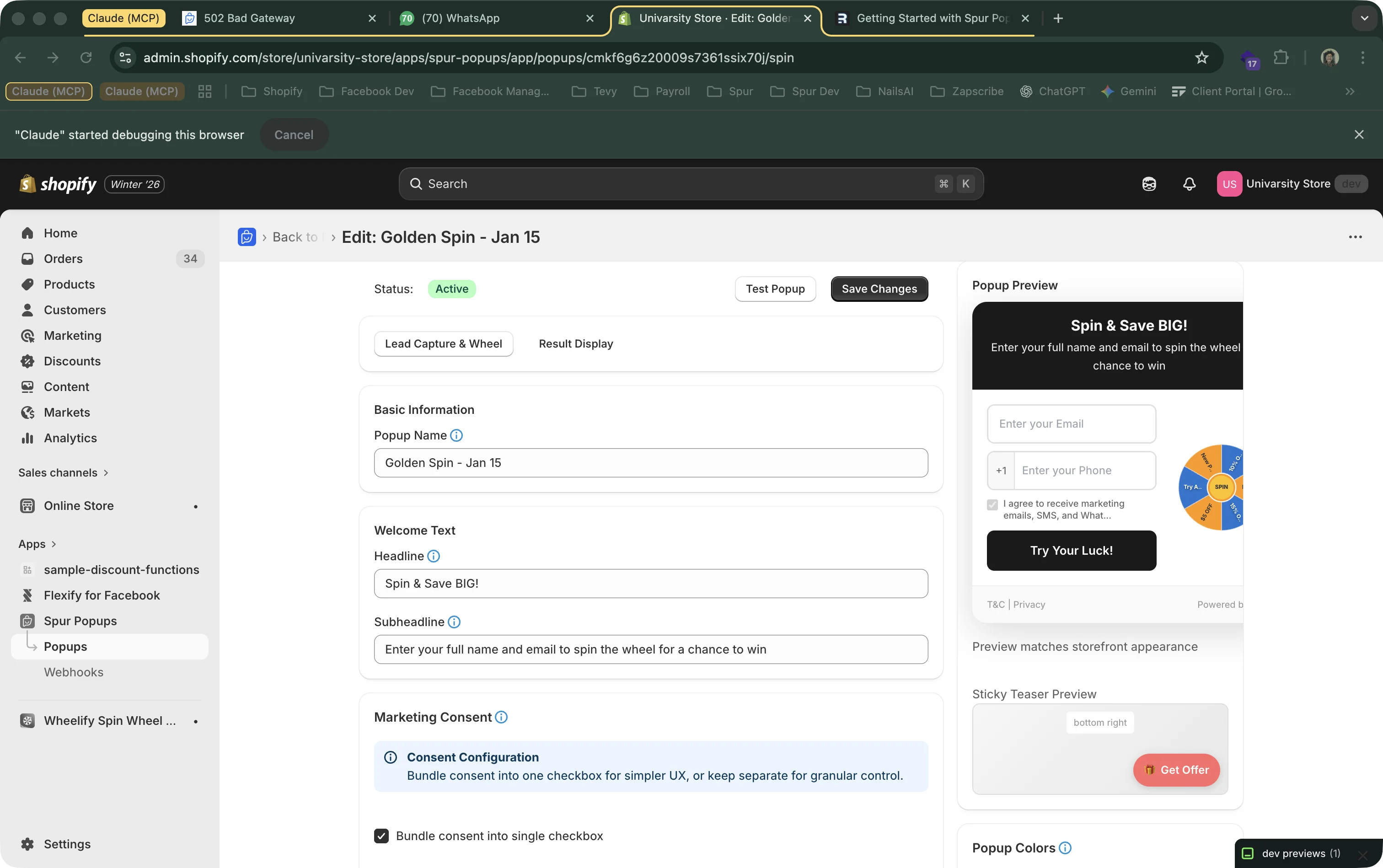
From your dashboard, click "Create Popup" and select "Spin to Win". You'll see the editor with a live preview of the wheel on the right:
Popup Name
Internal name only you see (e.g., "Holiday Spin Wheel", "Black Friday Spin"). Helps you find it on the dashboard.
Headline
The big text visitors see first. Make it exciting: "Spin & Save BIG!", "Try Your Luck!", "Win Up to 30% Off!"
Subheadline
Supporting text explaining what to do: "Enter your email to spin the wheel for a chance to win a discount!"
Button Text
The call-to-action button visitors click to spin: "SPIN THE WHEEL", "TRY MY LUCK", "LET'S GO!"
2Lead Capture Fields
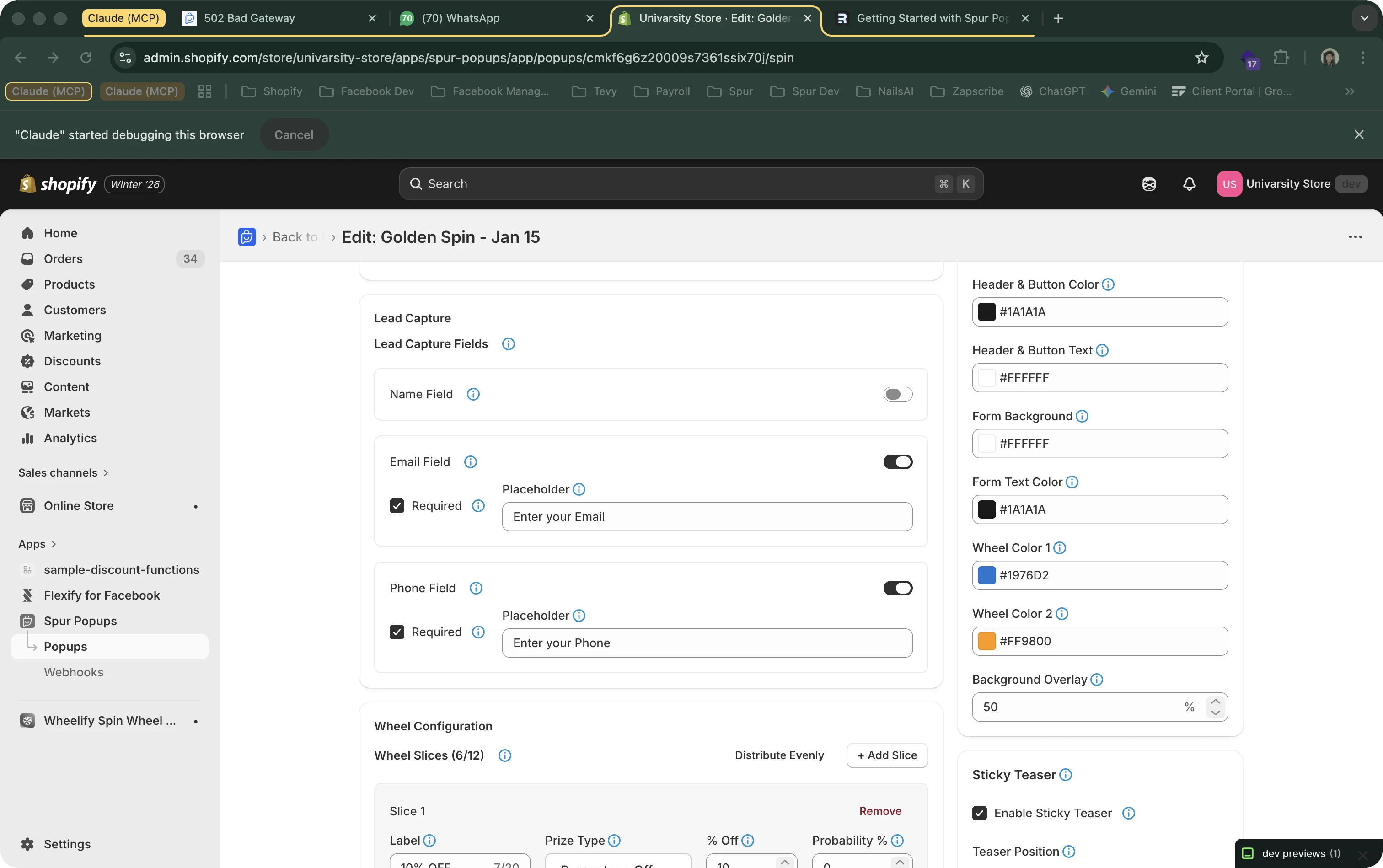
Choose which information visitors must enter before they can spin the wheel. This is how you collect leads:
Email Address
RecommendedAlways keep this on. Email is the foundation of your subscriber list.
Phone Number
Collects phone with automatic country code. Great if you use SMS or WhatsApp marketing via Spur automation.
Name
Optional. Adds personalization but also adds friction. Start without it and test later.
Conversion Tip
The excitement of spinning the wheel makes visitors more willing to share their info. Even with phone + email enabled, spin wheels convert well. But if you want maximum conversions, start with email only.
3Wheel Slices and Prizes
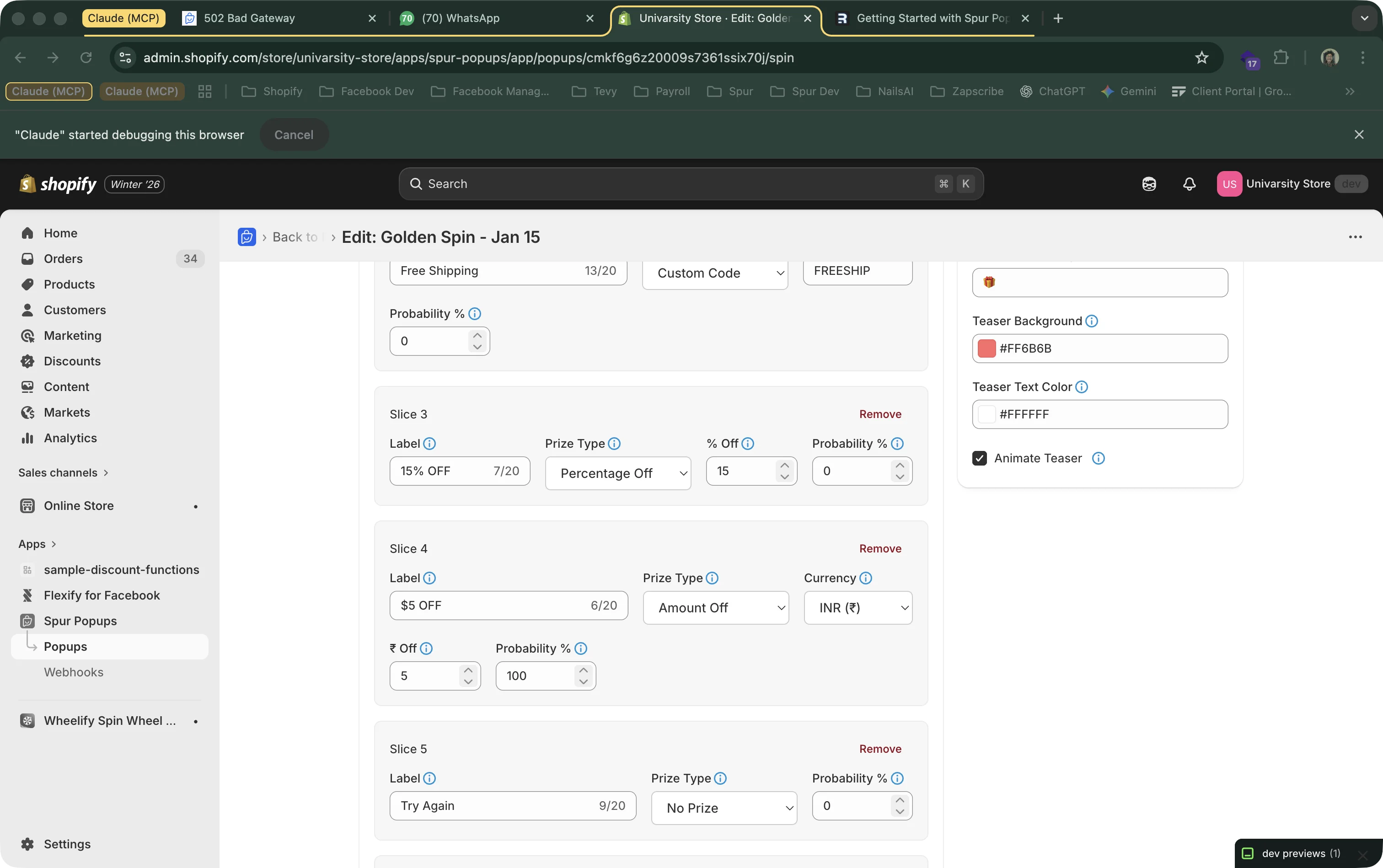
This is where you configure the actual wheel — how many slices it has, what each slice awards, and how likely each prize is.
Prize Types
Percentage Off
A percentage discount (e.g., 10% OFF, 20% OFF). Spur creates a unique Shopify discount code automatically.
Fixed Amount Off
A dollar/currency amount (e.g., $5 OFF, $10 OFF). Each winner gets their own unique code.
Free Shipping
A free shipping code. Good high-value prize that doesn't reduce product prices.
Custom Code
Use your own pre-existing Shopify discount code instead of auto-generating one.
No Prize ("Try Again")
A losing slice. The visitor still signs up (you get their email), but they don't win a discount.
Setting Probabilities
Each slice has a probability percentage that controls how often it's won. All probabilities must add up to 100%. Use the "Distribute Evenly" button to split them equally, or set custom values.
Recommended Strategy
A common setup that protects your margins while keeping visitors excited:
• 50% — Small discount (10% OFF)
• 25% — Medium discount (15% OFF)
• 15% — Large discount (20% OFF)
• 10% — No Prize ("Try Again")
This way 90% of visitors win something, which feels rewarding, while most wins are the smaller discount.
Slice Label Tips
Keep labels short — they need to fit on the wheel. Use "10% OFF" instead of "10 Percent Discount". The label is what visitors see on the wheel, and the prize value is what the code is actually worth.
4Consent and Colors
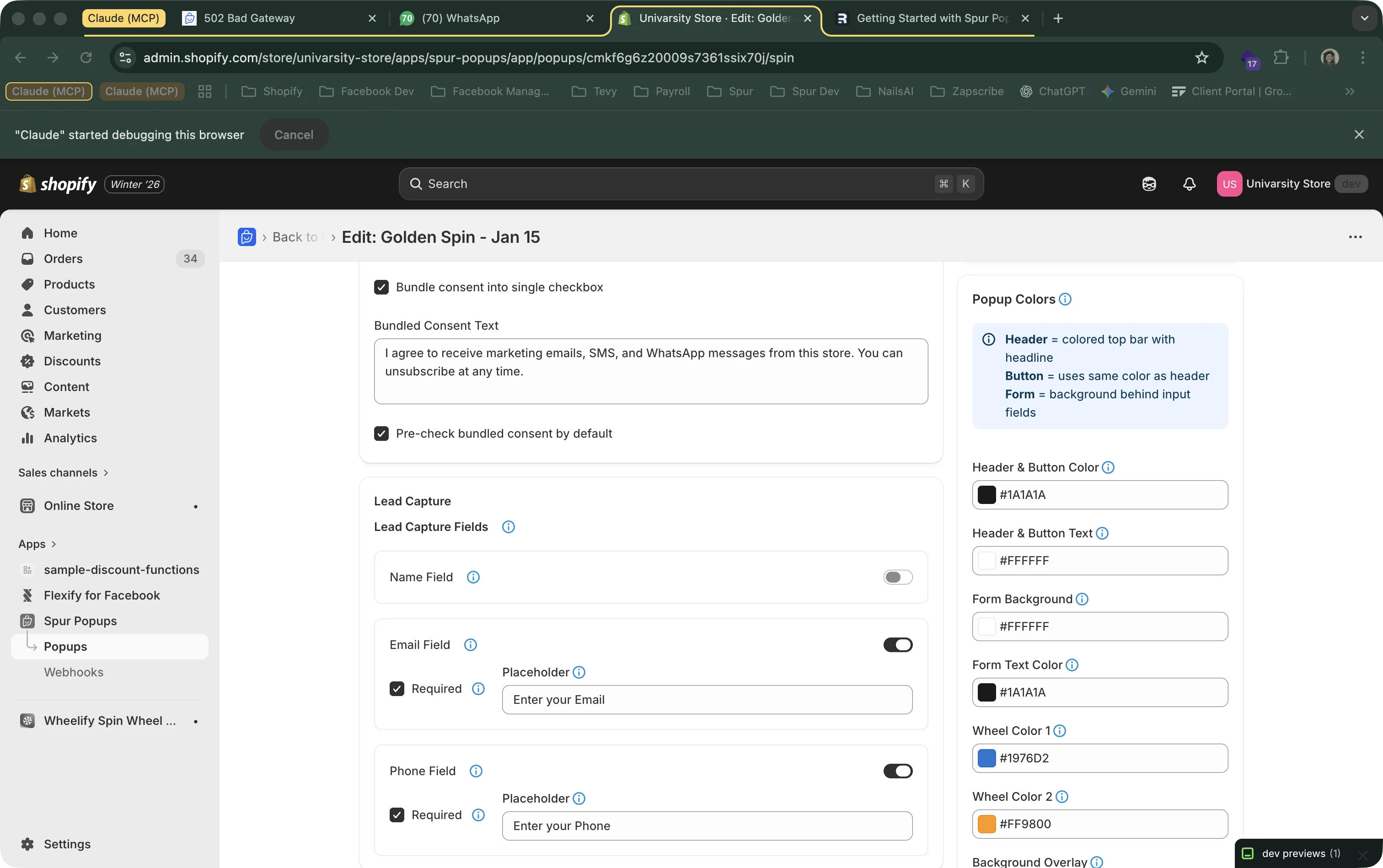
Scroll down in the editor to configure marketing consent and visual styling:
Marketing Consent
Choose between bundled consent (one checkbox for all channels) or unbundled consent (separate checkboxes for email, SMS, and WhatsApp). Spur automatically switches to unbundled consent for EU visitors regardless of your setting.
Colors
Header & Button Color
Background of the header bar and the "Spin" button. Use your brand color.
Header & Button Text
Text color on header and button. Make sure it contrasts for readability.
Form Background
Background of the input fields area. White or light colors work best.
Display Delay
Seconds before the popup appears (0–60). Let visitors browse first with a 3–5 second delay.
5Result Display (After Spinning)
After the wheel spins, visitors see a "result" screen showing their prize. Click "Next: Result Display" in the editor to configure this:
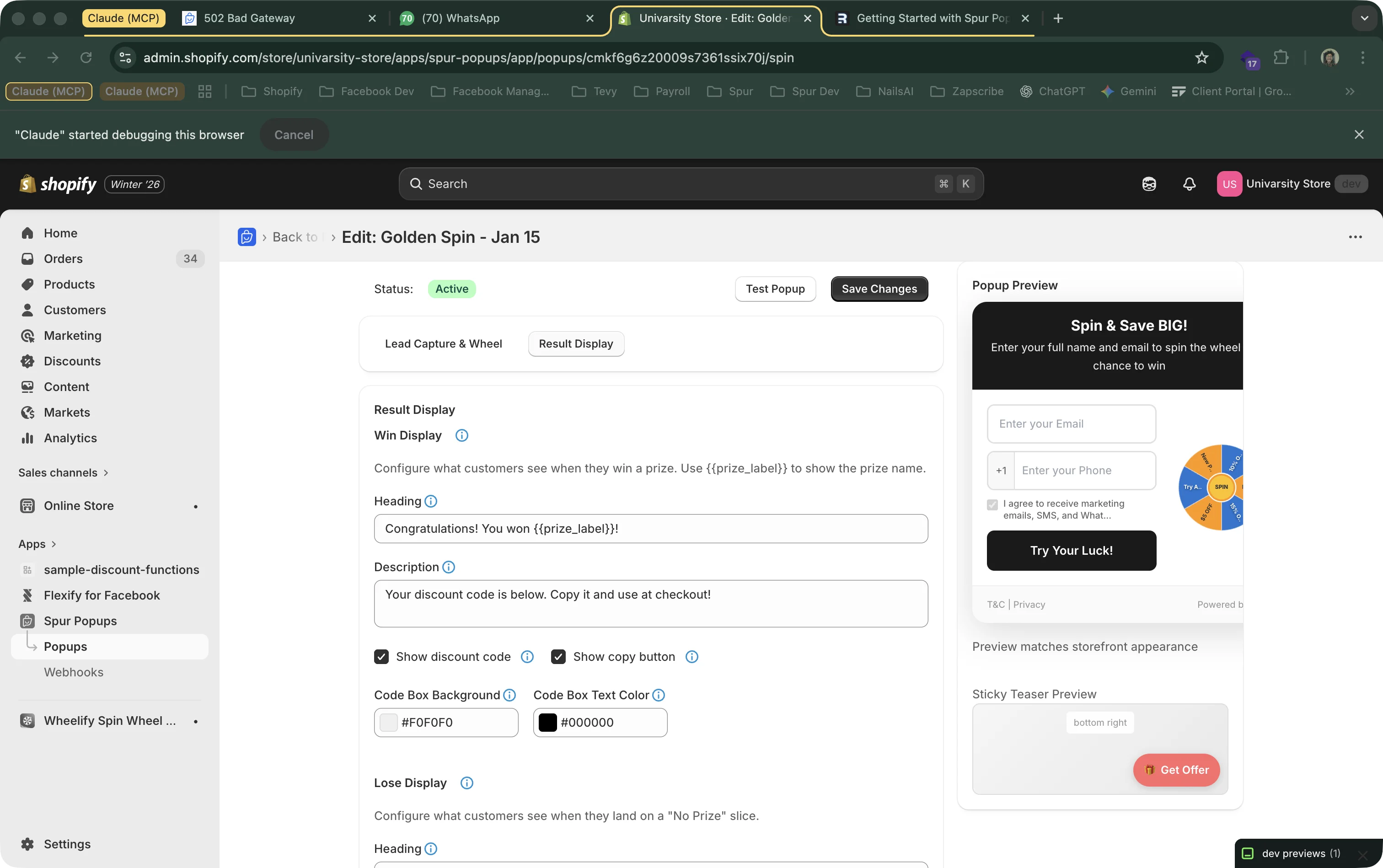
Success Heading
The congratulations message: "You Won!", "Congratulations!", "Here's Your Prize!"
Success Description
Text below the heading explaining how to use the code: "Use this code at checkout to claim your discount."
Discount Code Display
The auto-generated code is shown in a highlighted box with a copy button so visitors can easily copy it.
Shop Now Button
Optional CTA that closes the popup so visitors can start shopping with their code.
Boost Code Redemption
Want to make sure winners actually use their codes? Set up webhooks to automatically send the discount code via WhatsApp or email through Spur automation. This significantly increases redemption rates.
6Save and Activate
When your wheel is configured:
- Click "Save Changes" in the editor
- Go back to your dashboard
- Flip the toggle switch to activate your spin wheel
- Use "Test Popup" to preview it (you'll get a QR code for mobile testing too)
Remember: Only one popup can be active at a time. Make sure your app embed is enabled or the popup won't appear on your storefront.
Sticky Teaser
After a visitor closes the popup, a small tab (the "sticky teaser") appears at the edge of the screen. Clicking it reopens the popup, giving visitors a second chance to spin. You can configure:
Position
Where the teaser appears: Bottom Right, Bottom Left, Bottom Center, Middle Right, or Middle Left.
Teaser Text
Text on the tab (e.g., "Spin to Win!", "Try Your Luck!").
Pulse Animation
Enable a gentle pulsing animation to draw attention to the teaser.